Fix guide · updated 2026-11-16
Chrome "Permission was denied for this request to access the loopback address space"
Access to fetch at 'http://127.0.0.1:54321/…' has been blocked by CORS policy: Permission was denied for this request to access the `loopback` address space.
Your live app's call to http://127.0.0.1:54321 fails, and Chrome's console says "Permission was denied for this request to access the `loopback` address space". Or your live site shows a Chrome prompt asking to Access other apps and services on this device. Either way, your deployed app is calling the Supabase that runs on your own computer. We reproduced it offline in Google Chrome 157 with supabase-js 2.119. The surprise is who sees what: on your computer, clicking Allow makes the live site work, using the database on your laptop. Your visitors never see the prompt. They just get "Failed to fetch".
What the error means
Since Chrome 142, a website must ask before it talks to software on the visitor's own computer (localhost, 127.0.0.1: Chrome calls this the loopback address space) or to devices on their home or office network (192.168.x.x, 10.x.x.x: the local address space). Chrome calls this Local Network Access. It stops websites from attacking your router or the apps running on your machine. The message means the site doesn't have that permission: someone clicked Block, or the browser couldn't ask. This is the prompt, as Chrome 157 showed it for our test site:
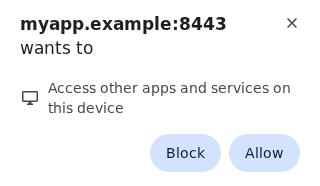
For a Supabase app, http://127.0.0.1:54321 is the address where supabase start runs Supabase on your computer (http://localhost:54321 gives the same message). Your hosted project lives at https://<project-ref>.supabase.co. So the build you deployed still has your local address in it.
Your code gets TypeError: Failed to fetch from database calls and AuthRetryableFetchError: Failed to fetch (status 0) from sign-in. One read prints the console line 4 times and its error takes about 7 seconds to arrive, because supabase-js 2.119 retries a failed read 3 times, after 1, 2 and 4 seconds.
What we saw in Chrome
We served a test app over HTTPS and told Chrome to treat it as a public website, with Chrome's own testing switch --ip-address-space-overrides. A stand-in for local Supabase answered on 127.0.0.1:54321. Then we ran the same select() in each situation:
- Your computer, Supabase running, first visit: Chrome shows the prompt and the app waits. After 30 seconds, nothing had reached Supabase yet.
- You click Allow: the call works. Everything you see and save on your live site goes to the database on your laptop, not to your hosted project.
- You click Block: this error, and nothing reaches Supabase. Chrome remembers the choice for the site, so later visits fail straight away.
- Anyone else, with nothing on port 54321: no prompt and no permission message. The console shows
net::ERR_CONNECTION_REFUSEDand the app gets "Failed to fetch". Chrome only asks once something answers at that address, and on their computer nothing does. - Your site on plain
http://: Chrome can't ask at all, and the message becomesThe request client is not a secure context and the resource is in more-private address space `loopback`. - Supabase at a network address such as
http://192.168.1.20:54321(often set to test from a phone): the same message with`local`instead of`loopback`. Chrome's prompt for that one reads "Access other devices on your local network". - While you develop, with the app on
http://localhost:5173or opened by your computer's network address: no prompt, and everything works. Chrome doesn't ask when the page itself comes from your machine or your network. That's why you never saw this before you deployed.
The fix: point the live app at your hosted project
1. Find where the local address comes from. Search your project for 54321 and 127.0.0.1. The usual places:
- A
.envor.env.productionfile in your repo withVITE_SUPABASE_URL=http://127.0.0.1:54321(NEXT_PUBLIC_SUPABASE_URLin Next.js). - The address written straight into the code, for example in
src/integrations/supabase/client.ts(Lovable) orsrc/lib/supabase.ts. - Your host's environment variables (Vercel, Netlify, Cloudflare Pages), copied from your local
.env. - You built on your computer and uploaded the
distfolder: the build read your.env.local, which holds the local address.
2. Put your hosted project's address and key there. In the Supabase dashboard, open the project and click Connect to copy its URL (https://<project-ref>.supabase.co) and its anon or publishable key. Keep the local values in .env.local only. If you build a Vite app on your computer, put the hosted values in .env.production: Vite gives it priority over .env.local in a production build. Values set in your host's settings beat every .env file.
3. Deploy again. Vite and Next.js copy these values into your JavaScript when the app is built, so changing a setting alone changes nothing on the live site.
4. Check the live site. Open it, press F12, open the Network tab and reload. The requests must go to https://<project-ref>.supabase.co, and the console line is gone.
5. Move what you built locally. Tables, policies and functions you made with supabase start exist only on your computer. Run supabase link --project-ref <project-ref>, then supabase db push, which applies the files in supabase/migrations. If you made tables by clicking in your local Studio, supabase db diff -f my_tables writes them into a migration first. Users and rows don't move with it. Skip this and the live app fails next with "Could not find the table in the schema cache".
Clicked Block while testing? Click the icon left of the address, then Site settings, and set Apps on device back to Ask. Once the app calls your hosted project, nobody needs this permission.
Stop it from happening again
Make a production build refuse a local address. In a Vite app, next to createClient:
const url = import.meta.env.VITE_SUPABASE_URL
if (import.meta.env.PROD && /localhost|127\.0\.0\.1/.test(url)) {
  throw new Error(`This build uses the local Supabase (${url}). Set VITE_SUPABASE_URL to https://<project-ref>.supabase.co and deploy again.`)
}
A wrong build then fails loudly, with a message that says what to fix, instead of quietly working for you alone.
If you meant to reach the visitor's computer
Some apps really do talk to software on the user's machine: a local AI model server, a printer or scale bridge, a desktop companion app. Then the prompt is expected. Chrome's guide for sites that use the local network covers it. The short version:
- Serve your site over HTTPS. From
http://, Chrome never asks, and the call fails with the "not a secure context" message. - Explain why before the call that triggers the prompt, and check the state first with
navigator.permissions.query({ name: "loopback-network" })("local-network"for devices on their network). Chrome 142 to 144 used a single permission namedlocal-network-access. - Inside an iframe, the page that embeds it must allow it:
<iframe src="…" allow="loopback-network">. - Companies can allow or block sites for all their users with the Chrome policies
LoopbackNetworkAllowedForUrlsandLocalNetworkAllowedForUrls(Chrome 146 and later). - Old answers say to add
Access-Control-Allow-Private-Network: trueon your server. That was Chrome's earlier plan, Private Network Access, which Chrome put on hold and replaced with this permission. In our test, Chrome never asked for that header.
In automated tests
Headless Chrome can't show the prompt. In our test, a page that had never been given the permission failed with this exact message. In Playwright (1.58), grant it to the test's browser context with await context.grantPermissions(['local-network-access']); the same call then worked. If the address shouldn't need the permission at all, Chrome's switch --ip-address-space-overrides=10.0.1.108:0=public makes it treat that address as public (port 0 means every port).
If an AI tool built your app
Give your AI tool this prompt:
My deployed app calls Supabase at http://127.0.0.1:54321 (my local Supabase), and Chrome blocks it with "Permission was denied for this request to access the `loopback` address space". Find every place the Supabase URL and key come from: the code, .env files and build settings. Make the app read them only from environment variables (VITE_SUPABASE_URL and the key variable this project already uses), keep the local values in .env.local only, and make a production build throw a clear error if the URL contains localhost or 127.0.0.1. Then tell me which values to set on my host before I deploy again. Don't change anything else.Not quite your error?
- "Failed to fetch" with
ERR_CONNECTION_REFUSEDon alocalhostor127.0.0.1address: the same mistake, seen from a visitor's computer. Same fix as above. Other causes are in Supabase auth "Failed to fetch". - "blocked by CORS policy" with another ending, on an Edge Function: Supabase Edge Function CORS errors.
- After sign-in, you land on
http://localhost:3000: Supabase login redirects to localhost. That's a Supabase setting, not your build.
Still stuck?
Read the console line closely: the address after Access to fetch at is where your app tried to go, and the one after from origin is the page that asked. If the first one is your supabase.co address, this isn't your problem. If it's a local address and you can't find where it comes from, open DevTools, go to Sources, press Ctrl+Shift+F (Cmd+Option+F on a Mac) and search the live site's code for 54321. The file it finds is where your build put it.
Other problems with an AI-built app? See Vibe code rescue.